
PDF extraction
How to add a custom okraPDF connector in Claude Desktop
Connect okraPDF's MCP server to Claude Desktop or Claude Code in a minute: one URL plus your okraPDF API key or account sign-in, then use PDF tools.
Claude Desktop can talk to outside tools through custom connectors — remote MCP servers it connects to directly. okraPDF runs one, so you can hand Claude a PDF (or a lawfully-reachable PDF URL — a public filing, an open paper, or a doc you have the rights to) and have it read the real structure, pull tables, and cite values back to the exact spot on the page — all inside the chat.
This takes about a minute. Every tool call needs an okraPDF account — the server rejects anonymous calls.
What you’ll need
- Claude Desktop (the connector UI is in Settings → Connectors) or Claude Code.
- An okraPDF API key (
okra_…). Mint one in Settings → API keys. Clients that can send a header — Claude Code,mcp-remote— pass it asAuthorization: Bearer okra_…. - In the Claude Desktop connector dialog, which can’t send custom headers, you sign in with your okraPDF account instead; the connect flow does it for you.
Claude Code: one command
claude mcp add --transport http okrapdf https://okrapdf.com/mcp \
  --header "Authorization: Bearer okra_YOUR_API_KEY"
Step 1 — Open the connector dialog
In Claude Desktop, go to Settings → Connectors → Add custom connector. You’ll see a dialog like this:
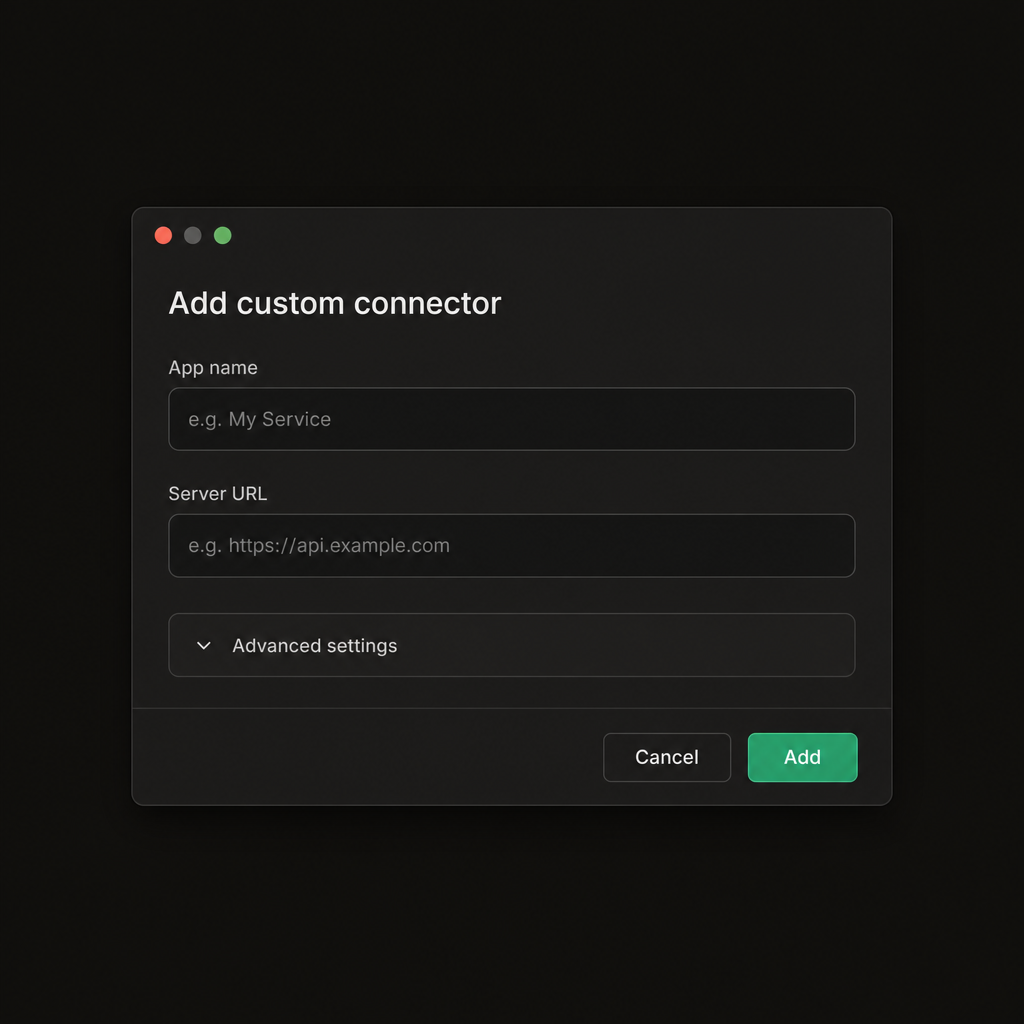
Fill in two fields:
- Name — anything you like.
okraPDFis a good label. - Remote MCP server URL — paste exactly:
https://okrapdf.com/mcpSet this up before August 2026? The old
api.okrapdf.com/mcpaddress is retired and now answers410 Gone. Open the connector, replace the URL with the one above, and reconnect.
Leave Advanced settings alone. The OAuth Client ID and Secret are optional, and you should leave them blank — okraPDF’s server advertises its own sign-in, so Claude wires up authentication for you. (More on that below if you’re curious.)
Click Add.
Step 2 — Sign in
The first time Claude uses the connector, it opens a browser window to sign you in to okraPDF. Approve it, and you’re connected. This is a normal OAuth login — Claude never sees a password or a key, and you can revoke access anytime from your okraPDF account.
Step 3 — Use it
Once it’s connected, okraPDF’s tools show up in Claude and it can call them on its own.
Try asking:
- “Read this PDF and pull the revenue table.” (attach a PDF)
- “Open the latest 10-K from NVDA and find gross margin.” (Claude resolves the URL itself)
- “Show me where that number is on the page.” (you get a citation back to the exact region)
Under the hood you’ve given Claude these tools: resolve_pdf_url (point at a lawfully-reachable PDF — public filings, open papers, or a doc you have the rights to), upload_document, view_document (page images with highlighted regions), inspect_html, execute_code (run code over the parsed data), verify_block, and interact.
view_html turns a lawfully-reachable PDF URL into a live, screen-reader-friendly HTML twin. Like every other tool, it needs your API key or account sign-in.
Why the OAuth fields are blank (for the curious)
You skipped the OAuth Client ID and Secret because okraPDF’s server publishes standard OAuth discovery documents at /.well-known/oauth-protected-resource and /.well-known/oauth-authorization-server. When Claude first hits the server, it reads those, then registers itself automatically (Dynamic Client Registration) and runs the sign-in. That’s the MCP Apps / authorization spec doing the work — you just paste a URL.
Troubleshooting
-
The sign-in window never finishes. Close it and click the connector again — a cold start can time out the first attempt. If it persists, make sure you’re online and not behind a proxy that blocks
okrapdf.com. -
“Should I paste my API key?” In Claude Code and
mcp-remote, yes — send it asAuthorization: Bearer okra_…(see the commands on this page). In the Claude Desktop connector dialog there is no header field, so use the browser sign-in instead. -
401 Unauthorizedon a tool call. The key is missing, mistyped, or revoked. Mint a new one in Settings → API keys and update the header. -
Using an older client that only supports local (stdio) servers? Bridge it with
mcp-remoteinclaude_desktop_config.json, passing your key as a header:{ "mcpServers": { "okrapdf": { "command": "npx", "args": [ "-y", "mcp-remote", "https://okrapdf.com/mcp", "--header", "Authorization: Bearer okra_YOUR_API_KEY" ] } } }
The same connector works elsewhere
That same URL — https://okrapdf.com/mcp — works in any host that supports remote MCP connectors, including ChatGPT and Cursor. Add it once per app with your API key header (or the account sign-in where the host offers it).